The best way to convert a bank statement
Start with the source, not the software. If your bank portal offers an official Excel, CSV or MT940 download for the period you need, use that file. It already contains structured transaction data and normally avoids the uncertainty of reading a PDF.
Use PDF conversion when the statement is available only as PDF, when an old account no longer has an export option, or when a client has supplied monthly statement files instead of transaction downloads. A specialist converter should identify the table structure, join wrapped narrations, preserve references and assign each amount to the correct debit, credit and balance column.
Digital PDF versus scanned PDF
A digital PDF contains selectable text. A scanned PDF contains page images and needs optical character recognition (OCR). Scans introduce more failure points: a faint decimal can change an amount, a tilted page can shift columns, and a page shadow can hide a minus sign. Whenever possible, download the original e-statement again instead of scanning a printed copy.
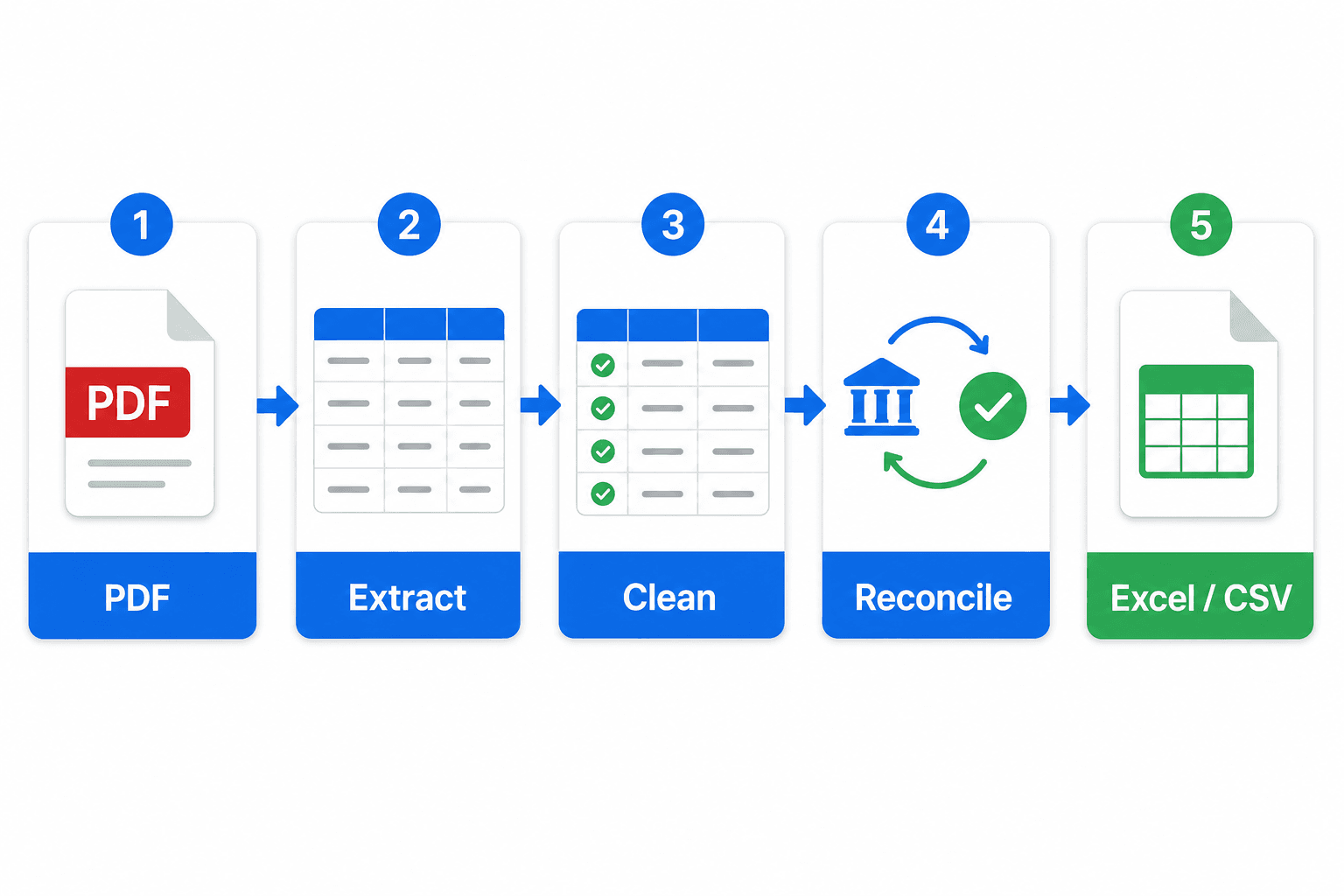
How to convert a bank statement PDF to Excel, step by step
- Collect the original statement.Download the PDF from the bank’s official website or app. Confirm the bank, account ending, currency and statement period. Keep this original unchanged.
- Check whether the PDF is digital or scanned.Try selecting a transaction narration. Selectable text usually means a digital PDF. A page that behaves like one large image needs OCR.
- Extract into standard columns.Use Date, Value Date where present, Narration, Reference/UTR, Debit, Credit and Balance. Do not merge debit and credit into one signed amount unless your destination requires it.
- Clean the rows without rewriting the source.Remove repeated page headers and join wrapped narrations. Preserve the original narration in one column; add a separate Merchant or Category column for analysis.
- Reconcile before download or import.Check totals and running balances, then export XLSX for review or CSV for transfer. Never treat a visually neat spreadsheet as proof of accuracy.
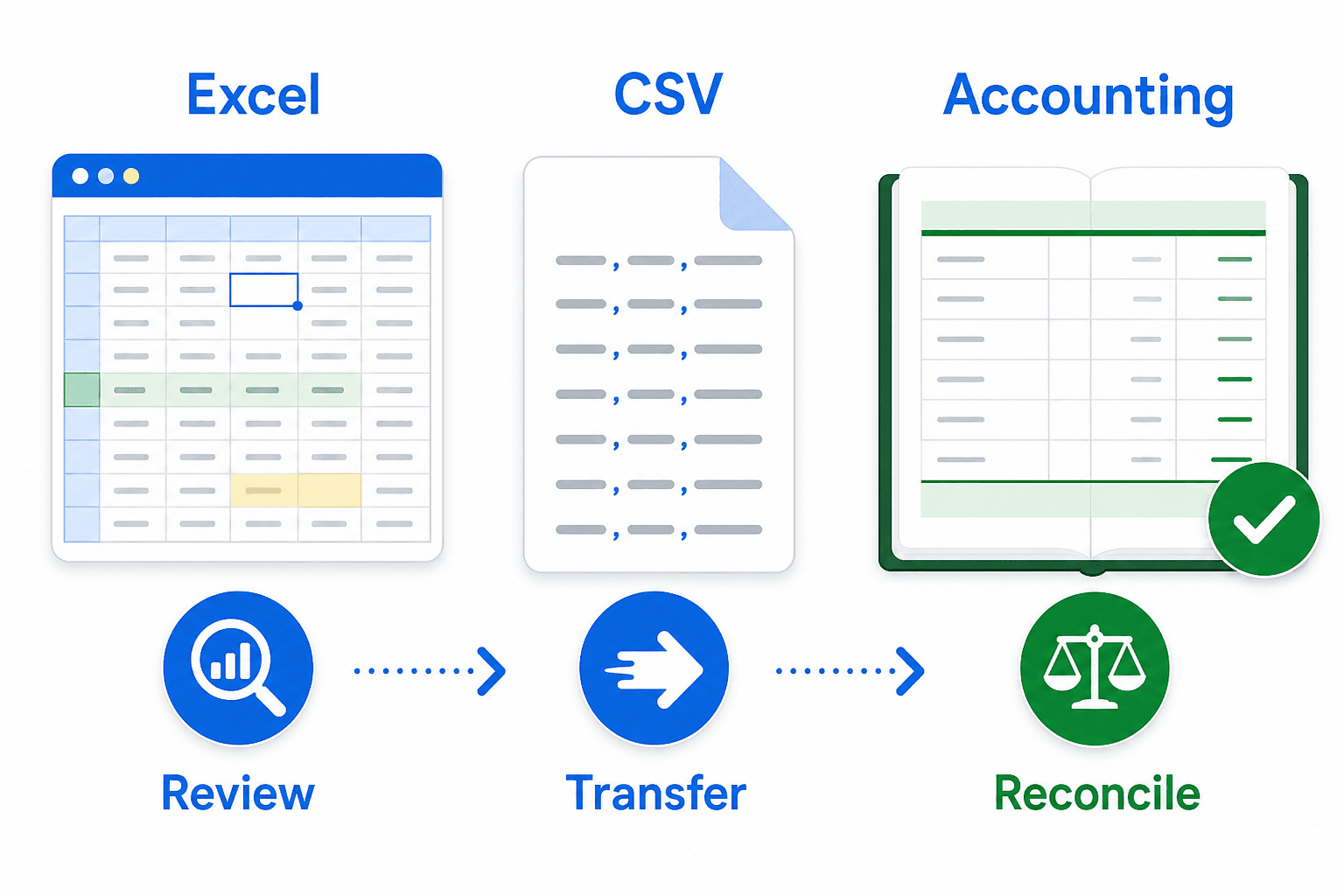
Excel, CSV or TallyPrime: which output should you choose?
| Format | Best for | Strength | Watch out for |
|---|---|---|---|
| XLSX | Review, filters, formulas, categories | Readable workbook with types and formatting | Long references and dates can be auto-formatted |
| CSV | Data transfer and accounting imports | Simple, portable and widely accepted | No formulas, multiple sheets or formatting |
| MT940 | Supported banking/accounting workflows | Purpose-built statement exchange format | Not offered for every account or bank |
| XML | Specific voucher or software imports | Can carry structured accounting objects | Schema must match the exact destination workflow |
| Archival and fixed-layout sharing | Preserves the bank’s presentation | Poor format for calculation or bulk import |
Converting a bank statement PDF for TallyPrime
Do not assume that any PDF-to-Excel file is automatically Tally-ready. Tally’s current banking guidance says its bank-statement import supports configured Excel, CSV and MT940 files downloaded from the bank portal. Its FAQ also says PDF and CSV/Excel files converted from PDF or third-party software are not supported in that bank-statement import route.
That does not mean PDF data can never be used in an accounting workflow. It means you must distinguish between importing a bank statement for reconciliation and creating vouchers through a separately mapped import. Before paying for “PDF to Tally XML,” confirm the TallyPrime release, the bank ledger configuration, required fields, voucher rules, and whether the output will be imported as statement data or accounting vouchers. Review the official TallyPrime bank-statement import instructions for your current version.
How to accurately convert bank statements
“99% accurate” is not a useful promise if the missing 1% is a ₹1,00,000 credit. Judge accuracy using controls you can reproduce.
The seven-point verification test
- The statement period and account ending match the source.
- The first and last transaction match the PDF.
- Every page transition is checked for a dropped or duplicated row.
- Total debit and credit values match the statement totals where provided.
- The calculated closing balance matches the printed closing balance.
- Long UTR, cheque and reference values are preserved exactly.
- At least five complex narrations and large-value rows are spot-checked.
When the totals do not match
Find the first row where your recalculated running balance differs from the PDF. The error is usually on that row or immediately above it. Common causes include a wrapped narration treated as a transaction, a reversal missed on the next line, CR/DR labels interpreted backwards, or a brought-forward balance counted as a credit.
For a deeper process, use our bank statement reconciliation guide.
Converting SBI and other bank statements
Indian banks do not use one universal statement layout. SBI, HDFC Bank, ICICI Bank, Axis Bank and other institutions can change columns across account types, delivery channels and statement periods. A converter should identify the layout from the file; the user should still verify the account period and balance.
For SBI bank statements
- Download the required period through an official SBI channel.
- Choose a direct structured export if one is offered for your account.
- If you use the PDF, enter its document password only in a trusted tool.
- Check descriptions that continue onto a second line and rows marked CR or DR.
- Confirm the calculated balance before importing the output elsewhere.
What about Chase, TD Bank or Barclays statements?
The same hierarchy applies worldwide: direct transaction download first, digital PDF conversion second, scanned-PDF OCR third. Column names, date formats and debit/credit signs vary by country and bank. A tool that supports one Indian statement should not be assumed to support Chase, TD Bank or Barclays without a layout test and reconciliation.
Free converters, specialist software, Hubdoc and Dext
The best software depends on what happens after extraction. A personal user may want one clean Excel workbook; a CA may need batch conversion and reconciliation; a bookkeeping practice may prefer document collection and accounting integrations.
Best first choice when Excel, CSV or MT940 is available. It avoids PDF extraction.
Best for PDF-only work when you need XLSX/CSV, preserved narrations and conversion-level balance checks.
Its official guide supports converting selected scanned or downloaded PDF statements to CSV for Xero or QuickBooks Online workflows.
Its Bank Statement Extraction accepts PDF/TIFF and exports transactions as CSV, with plan-based limits and account setup.
Acceptable for a tiny, simple table; risky for multi-page statements, wrapped narrations and scans.
Useful only when the destination schema, ledger mapping and voucher treatment are defined before conversion.
For the exact product limits and supported banks, consult the current Hubdoc bank-statement extraction guide and Dext bank-statement requirements. Product coverage and pricing can change.
Privacy checklist for an online bank statement converter
A statement can reveal account details, salary, customers, loans, medical payments and daily habits. “Free” should not mean unclear data handling.
- The service explains why it processes the file and when it deletes it.
- It never asks for net-banking login, OTP, UPI PIN or card PIN.
- Password-protected PDFs are handled without retaining the password.
- You can delete uploaded and generated files.
- Account numbers are masked in previews or reports where practical.
- The provider explains whether data is used for model training.
- You download the output, inspect it, and remove unnecessary cloud copies.
The RBI’s public financial-awareness material says not to share mobile-banking PINs, internet-banking IDs, passwords or OTPs. A statement converter needs the statement file—not access to your bank account. See the RBI financial awareness booklet.
Frequently asked questions
Can I convert a bank statement PDF to Excel for free?
Yes. For occasional use, choose a free-preview or free online converter that shows the extracted rows before download. Check its file-retention policy, supported banks and page limits first. Always reconcile the output against the statement balances before using it for accounts or tax work.
What is the best way to convert bank statements to Excel?
Download XLSX or CSV directly from the bank when that option exists. When only PDF is available, use a statement-aware converter that preserves narrations, separates debits and credits, retains reference numbers and performs a balance check. Generic copy-and-paste is suitable only for very small, simple tables.
Can I convert an SBI bank statement PDF to Excel?
Yes. First check whether SBI's official channel offers a spreadsheet download for the required account and period; a bank-supplied export is preferable. If you only have the PDF statement, use a converter that supports its layout, then verify opening balance, closing balance and sample transactions.
How do I convert a PDF bank statement to CSV?
Extract the statement into structured columns, review dates and amounts, reconcile the totals, then export as UTF-8 CSV. Keep one header row and one transaction per row. Preserve UTR and reference numbers as text so spreadsheet software does not round them.
Can scanned bank statements be converted to Excel?
Yes, but scanned statements require OCR before table extraction. Accuracy depends on scan quality, alignment, resolution, handwriting and page consistency. A digital PDF downloaded from the bank is normally easier to convert and verify than a photo or scan.
Can Hubdoc convert bank statements?
Hubdoc can extract transactions from supported scanned or downloaded PDF bank statements and generate CSV files for workflows such as Xero or QuickBooks Online. Its official documentation says unsupported banks can still be uploaded, but extraction accuracy is not guaranteed.
Does Dext convert bank statements to Excel?
Dext offers bank-statement extraction from PDF or TIFF and lets users export extracted transactions as CSV. A CSV can be opened in Excel, but it is not the same as receiving a formatted XLSX workbook. Availability, limits and pricing depend on the plan.
Can I convert a bank statement PDF directly to TallyPrime XML?
Treat bank-statement import and voucher XML import as different workflows. Current TallyPrime guidance supports bank-statement import from configured Excel, CSV or MT940 files downloaded from the bank and warns that third-party PDF conversions may not be accepted. Validate the exact release, bank configuration and import route before converting to XML.
How accurate are online bank statement converters?
Accuracy varies by bank layout, PDF type and validation method. Do not accept a percentage claim by itself. A reliable result should reproduce transaction counts, opening and closing balances, total debits and credits, and several page-level spot checks.
How do I convert bank statements to PDF?
If your statement is already in Excel or CSV and you need a shareable PDF, use Export as PDF or Print to PDF. Keep the original spreadsheet too: PDF is better for fixed-layout sharing, while Excel or CSV is better for filtering, analysis and import.
How this guide was prepared
This guide combines a reproducible statement-reconciliation method with current official documentation from Tally Solutions, Xero/Hubdoc, Dext and the Reserve Bank of India. It was written for Indian individuals, businesses and accounting professionals who need usable transaction data—not for manipulating search rankings.
Product features can change. The guide was last checked on . For high-stakes accounting or tax work, keep the original statement and have the final import reviewed by a qualified professional.